Image Viewer (show_image.php)
The show_image.php script is the standard mechanism in ABCD for displaying digital assets linked to bibliographic records in the OPAC.
Unlike a direct file link, this script provides several security and management features:
- Path Traversal Protection: Prevents unauthorized access to system files.
- Dynamic Resizing: Protects high-resolution original files by serving optimized versions.
- Watermarking: Automatically adds a watermark to images.
- Path Abstraction: Hides the physical server path from the end-user.
Configuration
To allow show_image.php to serve files, you must explicitly define the ROOT directory where your collections are stored. This prevents the script from accessing arbitrary directories on the server.
You can configure this in two ways:
Option 1: Via ABCD Central (Recommended)
- Log in to ABCD Central.
- Select the desired database (e.g.,
biblo). - Go to Update database definitions.
- Click on Database parameters (db.par) (usually located in the Database tab).
- Add or edit the
ROOTparameter.
Option 2: Manual Configuration
You can edit the dr_path.def file directly on the server. This file is located in the database directory:
.../bases/[database_name]/dr_path.def
The ROOT Parameter
Regardless of the method used, the parameter must be defined as follows:
ROOT=%path_database%biblo/collection/
:::tip Using the %path_database% Variable
The variable %path_database% is automatically replaced by the system with the absolute path to your bases folder (as defined in config.php).
- Dynamic:
%path_database%biblo/collection/(Recommended for portability). - Absolute:
/var/www/abcd/bases/biblo/collection/(Valid, but harder to migrate). :::
:::warning Security Requirement
If the dr_path.def file exists but the ROOT parameter is missing or empty, the OPAC will refuse to serve images (returning a 404 or 403 error) to prevent security risks.
:::
Usage in PFT
To display images in your search results or detailed view, you need to call the script within your display formats (PFTs).
1. Standard Display (<img> Tag)
Use this method for standard image display.
- Example: Field
v820contains the relative path (e.g.,album/photo01.jpg). - Base:
biblo.
/* Basic Image Link and Display */
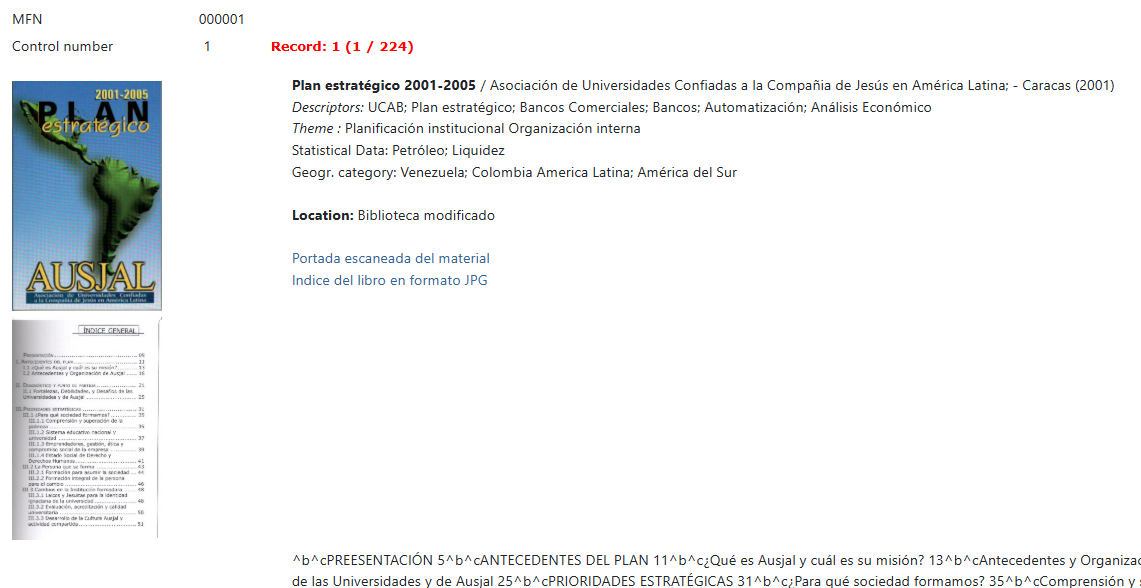
('<a href="/opac/viewer/show_image.php?image='v820'&base=biblo" target="_blank" class="gallery-item">'
    '<img src="/opac/viewer/show_image.php?image='v820'&base=biblo" alt="Image associated with record">'
'</a>'/)
2. Protected Display (<canvas> Tag)
If you want to make it difficult for users to "Right-click > Save Image As", you can render the image onto an HTML5 Canvas. This requires the OPAC's JavaScript libraries to function.
- Example: Field
v856contains the image path.
/* Protected Image Rendering */
(if p(v856) then
    '<canvas class="protected-canvas" data-src="/opac/viewer/show_image.php?image='v856'&base=arquivo"></canvas>'
fi)
3. Advanced Display with Full Screen
This example creates a centered image container using the secure Canvas method, including a button to toggle full-screen mode.
/* Image with Full Screen Button */
(if p(v820) then
    '<div class="image-container text-center">'
        '<canvas class="protected-canvas img-fluid rounded" data-src="/opac/viewer/show_image.php?image='v820'&base=biblo"></canvas>'
        '<br>'
        '<button type="button" class="btn btn-dark btn-sm mt-2 btn-fullscreen-canvas">'
            '<i class="fas fa-expand"></i> View Full Screen'
        '<button>'
    '</div>'
fi)
Features & Customization
Image Resizing
By default, show_image.php protects your high-definition originals.
- Logic: It checks the dimensions of the requested image.
- Behavior: If the width or height exceeds 800px, the image is dynamically resized (downscaled) before being sent to the browser.
- Benefit: This improves page load speed and prevents users from easily downloading the print-quality original file.
Watermarking
The script automatically applies a watermark to processed images.
- Content: It prints the server's hostname (
HTTP_HOST) and the current timestamp. - Customization: To change the watermark text, font, or opacity, you must edit the
opac/viewer/show_image.phpfile directly. Look for the "Watermark" section in the PHP code. - Disabling: To disable the watermark, simply comment out the relevant lines in the PHP file.
Full Quality Access
Technically, the script supports a &full=y parameter to bypass resizing, but this is generally reserved for internal use or authorized views to ensure data protection.