Creating a Database from a Model
The fastest way to get started is to clone one of the industry-standard models included with ABCD. This sets up all the complex rules (FDT, FST, PFT) for you automatically.
Step-by-Step Guide
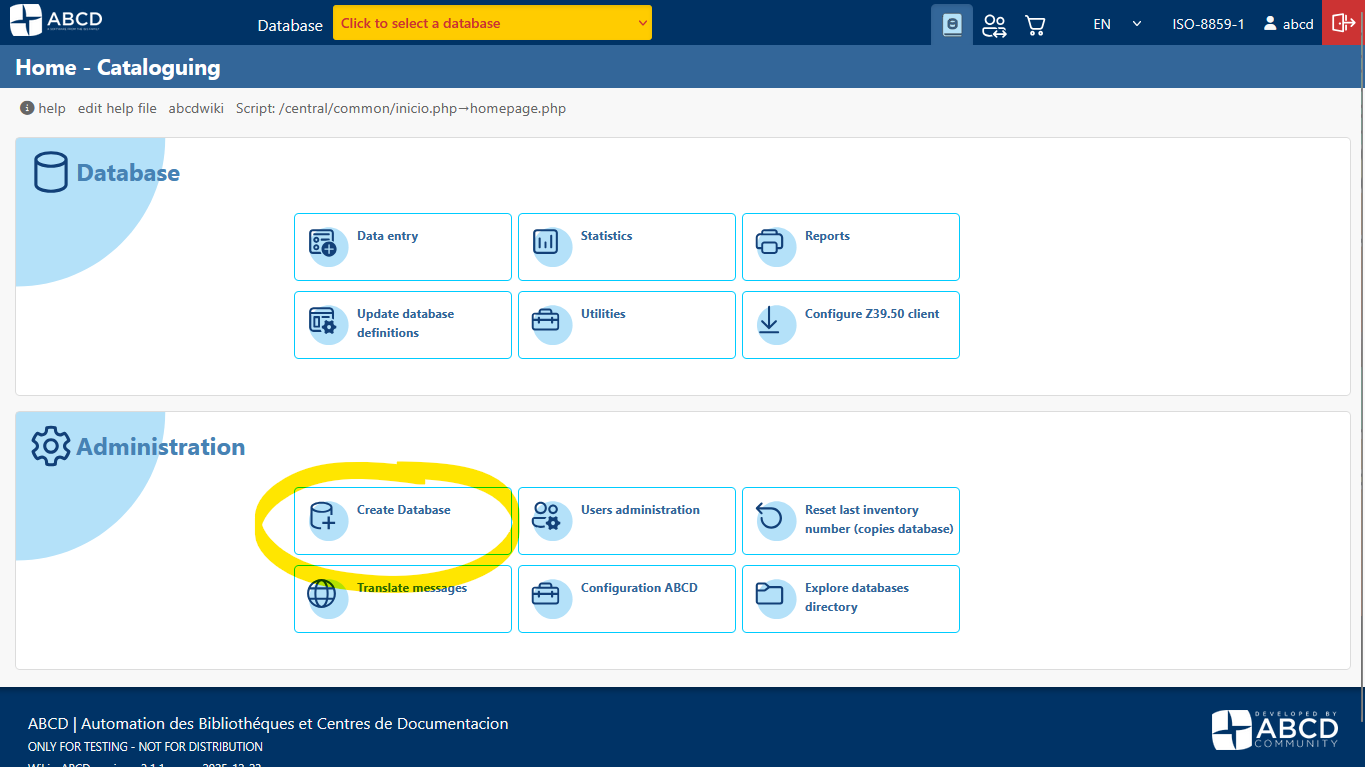
1. Access the Administration Menu
- Log in to the Central Module (
http://localhost:9090/admin) as a Superuser (e.g.,abcd). - On the main dashboard, locate the Administration section.
- Click on Create new database.
2. Define Basic Information
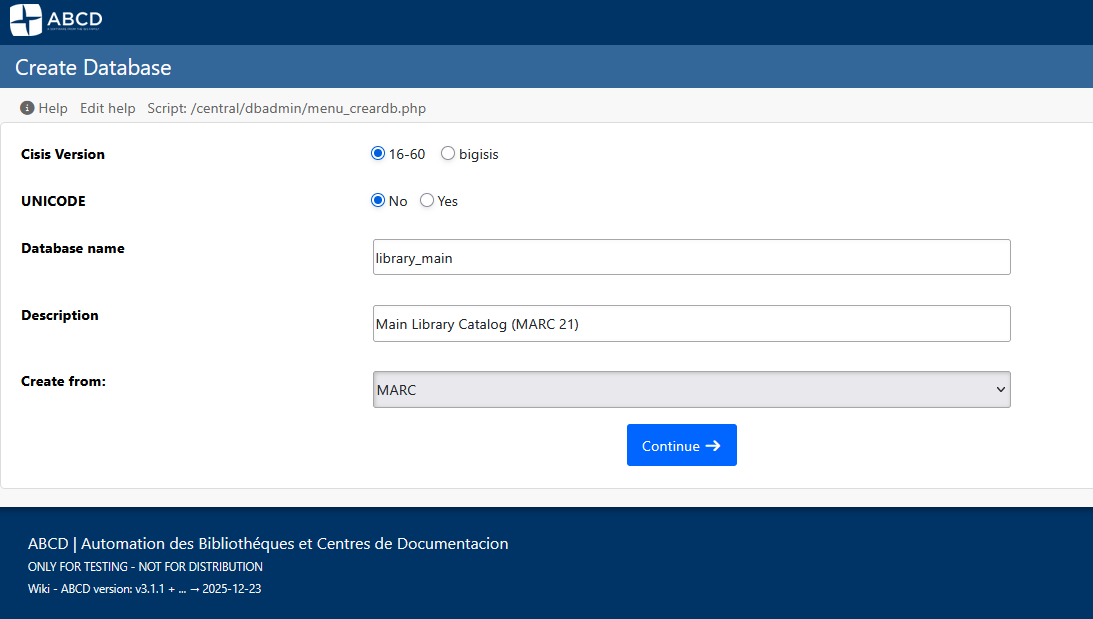
You will see a form asking for the database details:
- Database folder name: Enter a short, unique code.
- Rule: Use lowercase letters, numbers, and underscores only. No spaces or special characters.
- Example:
library_main
- Database description: Enter a human-readable title.
- Example:
Main Library Catalog (MARC 21)
- Example:
- Create from: Select Use existing database.
3. Select the Model
A dropdown list will appear with available templates. Common options include:
- MARC: The MARC 21 standard for bibliographic data.
- LILACS: Methodology for Health Sciences (BIREME).
- DUBLIN CORE: Simplified metadata standard.
- USERS: A template for managing library patrons.
Select MARC (or your preferred standard) and click Continue.
4. Confirmation
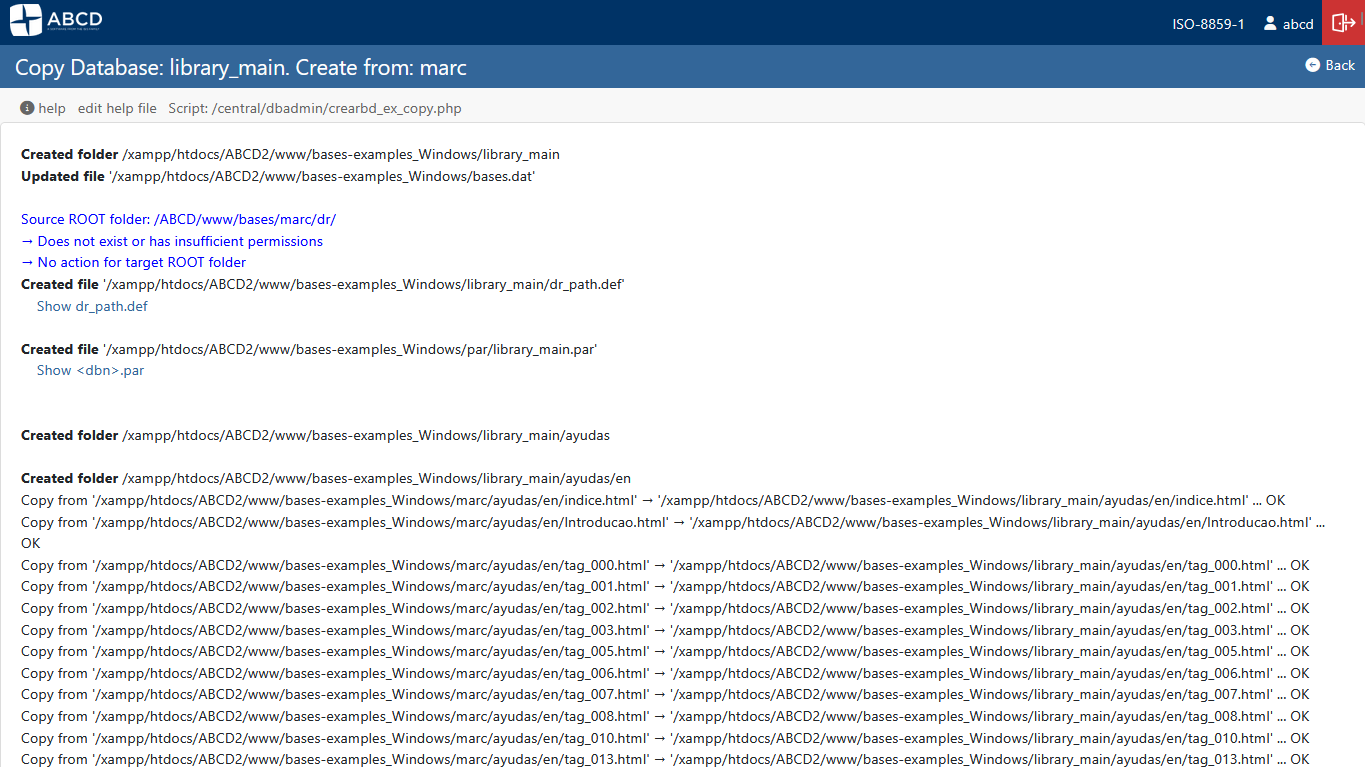
The system will copy all necessary structure files (.fdt, .fmt, .pft, .fst) to the new database folder.
When the process finishes, you will see a confirmation message.
Click Back or Return to Menu.
Next Steps
Your database is ready!
- To start adding books, go to Cataloging > Data Entry and select your new database.
- If you don't see your database in the list, you may need to logout and login again to refresh the profile permissions.